

How to Get Started
How to Log In
Log into Shape using the "Chrome" Internet browser. Using Chrome will unlock capabilities such as voice dictation tools. Please do not use Internet Explorer, as this will lead to issues using the platform.
Getting Help
This document outlines the process for users to request support and assistance from your coaches and Shape.
Contact Management
We have made it easy to find and manage your leads, applications, loans, referral partners, and contacts. Our collaborative efforts with AnnieMac has resulted in pre-configured views designed to enhance the efficiency of your contact management, saving you valuable time and effort.
Shape offers easy-to-use tools and customized columns empowering you to take action and maintain an organized follow-up process, so you can stay ahead of your tasks effortlessly.
When sending email blasts, please be sure to select a pre-defined template to ensure that the appropriate disclosures are added to the email footer. If you are unsure what template to select, please send an email to marketingsupport@annie-mac.com
Data Import
Ready to importing your data into your CRM software? We've got you covered. With our easy-to-follow tutorial, importing your data has never been easier. Say goodbye to headaches and hello to efficiency with Shape CRM.
Download the Import Template: We've simplified the process for you. Just click the link to download our pre-configured import template.
Watch the 2-Minute Video: Need a visual guide? Our concise tutorial video will show you exactly how to navigate the import template in just two minutes.
Fill Out the Template: Once you've downloaded the template, simply fill it out with your data. It's designed to be user-friendly, ensuring a smooth experience every time.
Send It Off: Attach your completed template and send it via ticket to marketingsupport@annie-mac.com. Our team will take care of the rest, ensuring your data is seamlessly integrated into Shape CRM.
Statuses
Statuses play a vital role in keeping your workflow organized and ensuring that automated follow-ups start and stop at the right time. It's important to update statuses, especially with new leads.
For an easy way to pause automated drip campaigns, simply use the "No Drip Campaigns" status within Shape.
For synced loan files, Encompass will automatically update Shape as milestones are finished. But remember, maintaining the correct statuses from the initial "New" status through to "Pre-Approval" is key to your success.
Calling in Shape
Shape has a built-in phone system that supports both outbound and inbound calls. With a simple tap on the phone icon, Shape initiates your call automatically. All calls made within Shape are automatically tracked, providing you with valuable insights such as the history of call attempts and more.
As part of the package, you receive a dedicated Shape phone number. Any incoming calls to this number will be forwarded to either your mobile or work phone, ensuring you never miss a call. If you need to change this forwarding number, our dedicated support team at support@setshape.com is ready to assist. Simply provide your name along with the preferred new forwarding number, and we'll make the adjustments for you.
Texting in Shape
Shape offers a bi-directional conversational texting feature integrated seamlessly into your system, providing you with a centralized hub for all your communication. You can view texts directly within the contact record, via the text message inbox, or by clicking on the texting history icon located on the right-hand sidebar navigation.
Stay updated with real-time notifications for new text messages, allowing you to respond quickly, whether you choose to do so within the Shape platform or via our mobile app. The mobile app download links are provided below for your convenience!
Emailing in Shape
Shape's built-in email functionality lets you send emails effortlessly, similar to using your Outlook account. However, we've gone a step further by offering handy templates to expedite your content creation process.
When sending email blasts, please be sure to select a pre-defined template to ensure the proper disclosures are included in the email footer. If you are uncertain about which template to choose, don't hesitate to reach out via email to marketingsupport@annie-mac.com for guidance.
Our email tracking feature monitors clicks and opens, ensuring you can follow up promptly. You can also forward emails into Shape if you wish, but it's not mandatory. If you don't use forwarding, responses will go to your regular inbox. With forwarding enabled, responses will be sent to both your inbox and the email inbox in Shape, conveniently recorded in the contact log.
Task Management
Shape's integrated task manager offers you the flexibility of choosing between a prioritized list view and a kanban card-view, catering to your preferred organizational style. This feature is especially valuable for Loan Officers and Loan Partners collaborating on customer follow-ups.
Easily delegate tasks by using the "@" symbol to tag team members you want to assign to a task. They'll receive notifications, and the task will appear in their task view automatically. Also, certain campaigns can automatically generate tasks, simplifying your workflow. To activate this feature, just inform your branch manager.

Automated Drip Campaigns
Check out the marketing release notes at the bottom of this page for all the details. Click to view the full content and drip sequence of these automated campaigns in Shape.
Here are the next steps!
Explore our guides and instructional videos covering common tasks in Shape below. For a more immersive learning experience, sign up for our live training sessions
Branch Onboarding Call Recordings
Now that you've gained an understanding of Shape's layout and some essential features, take a moment to review prior training on Shape. It will provide insights into effectively utilizing prioritized views and managing your leads.

Get the Mobile App
Stay productive while on the move. Don't overlook the convenience of the Shape mobile app. With it, you can efficiently manage your day, including prioritized views, note-taking, texting, and more, all from the convenience of your phone.
Upload Your Profile Picture
As soon as you log into Shape, prioritize uploading your headshot to your user profile. Simply click the circle image icon in the top right corner of the navigation bar, then select 'Profile Settings' to upload your headshot. Remember, this headshot will be displayed in your email signature, so choose a good one! Make sure your photo is 150 x 150 and a max of 500 KB. If you need assistance resizing your headshot, please submit the request to your dedicated coach.
Customizing Your Notification Settings
Stay on top of your tasks and updates by customizing your notification preferences in Shape. Click on your profile picture in the top-right corner, select Profile Settings, and then click on the Notifications tab. From there, choose how you'd like to receive alerts—via email, SMS, in-app pop-ups, or push notifications. Use the toggles to control which events trigger notifications, such as new leads, task reminders, or calendar events.
Create a Loan in Encompass
Simplify loan file creation in Encompass with Shape! While in a borrower file, locate the 'LOS' dropdown in the upper-right corner just below the navigation bar. Inside the dropdown, you'll find the 'Sync to My LOS' option. Clicking this will generate a loan file in Encompass and set up a seamless bi-directional sync.
Adding a New Lead or Contact
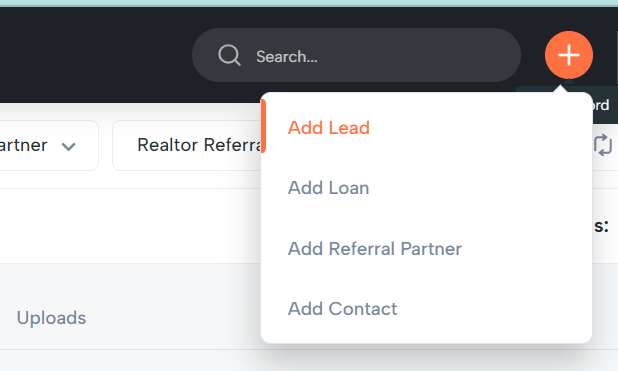
Effortlessly add new leads or contacts in Shape. Simply click the orange '+' button on the top navigation bar and select the contact type you want to add. Ensure you complete all required fields (indicated with red outlines) to successfully save the lead or contact.
How to Check & Merge Duplicates
Leads from automated channels go through duplicate management by default. When adding a lead manually, be sure to check for duplicates. You can also merge duplicates from the master search screen. For a detailed guide, watch the video below.
Referral Partners vs Contacts
Referral partners and contacts are similar, but the key difference is the 'Referral Tracking' tab. Referral partners are contacts you collaborate closely with on referred deals. The 'Referral Tracking' tab under 'Referral Partners' centralizes all referred deals tied to them, streamlining relationship quantification and tracking. Contacts can be associated with loan files but may not generate referral business.
Linking Contacts to Transactions
In the 'Service Providers' tab within borrower contacts (leads, applications, loans), search and select key service providers by first name, last name, full name, or company name. Use the 'Search' icon to pick from matching referral partners and contacts. Ensure they exist in the system before linking; add new referral partners or contacts with the '+' button on the top navigation bar if needed.
Updating Statuses
Status is crucial in Shape. Update it manually pre-Encompass to organize contacts and ensure proper enrollment in drip campaigns. Once Encompass connects to the loan file, status updates will automate seamlessly.
How to Search
Searching in Shape is a breeze. For a master search across all contact types, use the search bar in the top dark navigation bar. The search bar on list views, on the other hand, just query that particular list view.
Using Checklists
Inside a contact record, navigate to the left-hand command center, and you'll discover the 'Checklist' feature. It offers pre-defined tasks as reminders for your next steps, complete with user tracking and timestamp for each completion.
Using Tags
Every contact type in the system includes a 'Tags' field, allowing you to finely segment your data beyond field filters and status. This multi-select categorization tool simplifies record grouping and retrieval. This is most commonly used for bulk communication and reporting.
Send an Email Blast
You have the ability to quickly and easily send an email blast to records that are in the system. Once you have refined your search to the right records, you select 'Bulk Action' and then select 'Send Email'.
Send an Text Blast
You have the ability to quickly and easily send an email blast to records that are in the system. Once you have refined your search to the right records, you select 'Bulk Action' and then select 'Send Email'.
Creating Calendar Events
Shape has a convenient calendar feature that can also sync with your Outlook online calendar via your user profile. To create an event, click the calendar icon or select a day in calendar views. Events created in Shape won't alert the customer but can sync with your email calendar and will remind you based on your notification preferences in your user profile.
How to Assign
Assigning and re-assigning contacts to team members, particularly within Loan Originator/Loan Partner (LOA) teams or for managers reallocating leads, is a common task. You can efficiently manage this both in bulk and on a record-by-record basis within the system. Understanding department assignments is key to effectively handling record assignments.
Clearing Cache & Cookies
Shape frequently undergoes updates to its platform. Occasionally, your browser may retain outdated settings. Cache and cookies are mechanisms used by browsers to enhance speed and performance. However, if you notice any unusual behavior in your system, we recommend starting by clearing your cache and cookies.
Contact Logs
The contact log offers a complete history of all communication between users and borrowers in Shape, including calls, texts, and emails. It provides details such as email opens, clicks, sent/received texts, and both incoming and outgoing calls, all conveniently in one central location.
Compliance Components
Discover Shape's comprehensive array of opt-out and communication compliance features, encompassing Do Not Contact, Email Unsubscribe, Text Opt-Out, TCPA Consent, and instructions on disabling automated drip campaigns for specific recipients.
Send Co-Video
In this brief walkthrough video, we demonstrate how easy it is to record personalized video messages and send them directly through your CRM – through email or through SMS Text. Watch as we show you step-by-step how to record, preview, and send a video message within seconds, making client engagement more impactful and efficient than ever before!
How to send a bulk email on behalf of my Loan Originator(s)
Are you in a sales support, sales manager, or admin role? You are able to send bulk emails on behalf of loan originators within the branch. Follow these steps to ensure the email signature and 'from' line are the loan originator assigned to the borrower or realtor.
How to Send a Lead Your Apply Now Link (nCino link) from Shape
We're asking you to start sharing your point of sale application links through Shape CRM templates instead of directly from the point of sale system itself. When you share your point of sale links directly from the CRM, it creates a more linear process for the borrower. Please review this video for further details.
Daily Success Plan
Download the PDFs or watch the videos below.
Monday - Realtor Checkins
Tuesday - Pipeline Updates
Wednesday - Past Client Database
Thursday - PreQuals
Friday - TrustEngine Opportunities
Manager Reporting
Maximize Your Monday Check-Ins with the Right Agents
This quick walkthrough shows you how to look up production data in RETR, enhance agent records, and apply classifications in Shape—so your Monday Realtor Check-In view works exactly as designed, prioritizing top producers who can move the needle.
Task 1
Task 2
Marketing Releases
Automated Drip Campaigns Launched on Friday 9/20!
Marketing is thrilled to announce the upcoming release of two major drip campaign automations in our CRM system.
- New Lead – campaign to auto-trigger when a new lead is added to Shape
- Refinance – campaign designed to help us navigate the potential market shift and stay in front of our past clients most likely to refinance
New Lead Campaign
Leads with status of ‘New Lead’ will now receive a series of automated emails designed to engage them effectively. The call to action in these emails will be ‘Apply Now,’ directing them to your point of sale landing page in nCino (Simple Nexus).
When a lead clicks on the customized nCino link from Shape, the process will streamline as follows:
- The Shape lead status will auto-update.
- The application will sync seamlessly to Encompass.
- There will be no duplicates created.
For a more detailed explanation of this important process change, please take a moment to watch the video from Erika Thomas.
Two versions of the New Lead drip campaign will be activated on Friday, September 20:
- New Lead Internet – applies to leads from ‘internet’ Sources such as Zillow.
- New Lead Referral – applies to leads with Source = Realtor Referral. Note: When you manually add a lead to Shape with this lead source, the automation will not trigger immediately, you will have a 15-minute window to update the Status (out of New Lead) if you do not want marketing to automate.
Market Shift Refinance Campaign
In light of today’s Fed announcement, I’m excited to share that we will be launching a targeted refinance drip campaign this Friday, September 20.
This campaign consists of six carefully crafted emails (brand new) that will be sent over the next 40 days, specifically designed to engage our past clients and funded borrowers. Our focus will be on reaching out to those in your database with interest rates of 6% or higher.
This is a great opportunity to reconnect with our clients and provide them with valuable information about potential refinancing options.
Here’s what you need to do:
- Review the content of the email campaign (see image attached for subject lines or click for video of the full content)
- Keep an eye on your email for responses. If a borrower responds, here’s what to do in Shape:
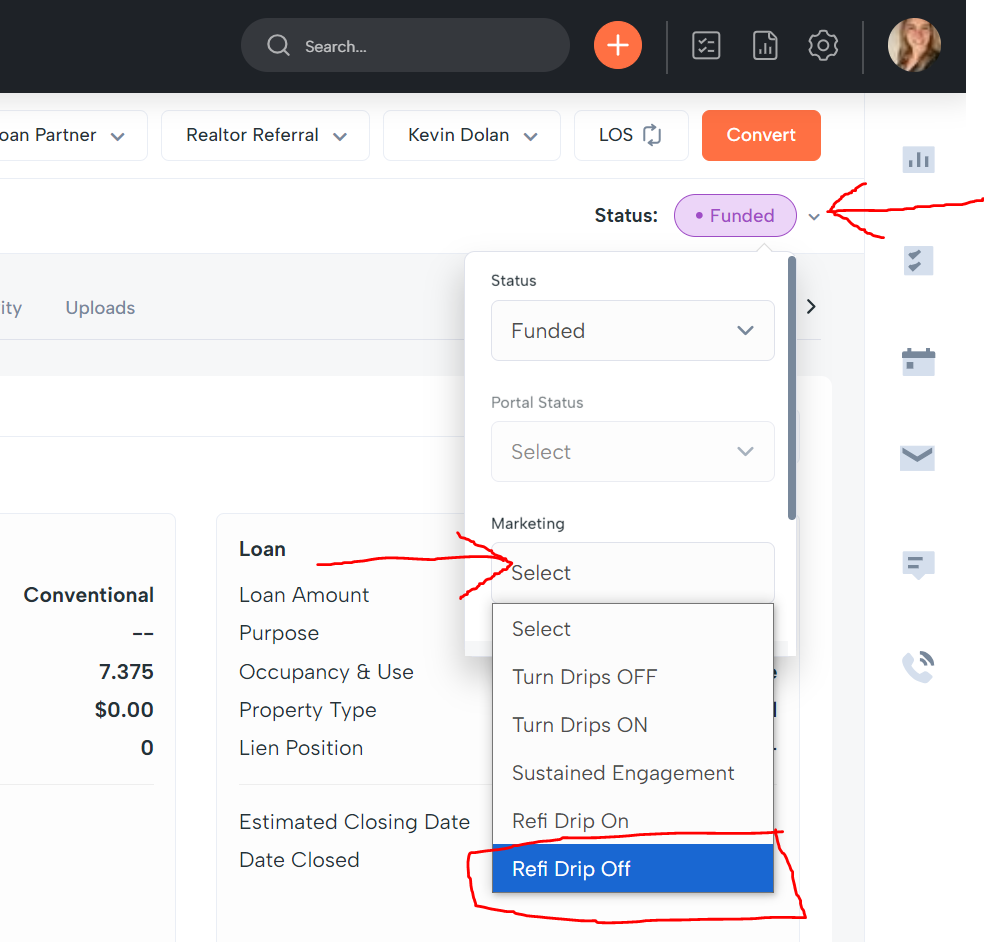
- Remove the borrower from the drip campaign to prevent future emails going out. Login to Shape. Lookup their record. Select Status > Marketing Status > Refi Drip Off (see screenshot)
- Remove the borrower from the drip campaign to prevent future emails going out. Login to Shape. Lookup their record. Select Status > Marketing Status > Refi Drip Off (see screenshot)
- For the new refinance opportunity with your client, do not update the existing Funded Loan in Shape, as this will not be able to be synced to Encompass. Instead proceed with either option:
- In Shape, add Lead (see screenshot below) — Or in Encompass, use the Kinsey May copy tool (this new transaction will sync to Shape).
- For the new refinance opportunity with your client, do not update the existing Funded Loan in Shape, as this will not be able to be synced to Encompass. Instead proceed with either option:
Drip Campaign Marketing Releases
We’re excited to announce some key updates in Shape CRM, aimed at enhancing your workflow and effectiveness.
Summary of What’s Available Today:
- Confirmations + Reminders
- Missed Appointment Follow Ups
- Rate Relief
- Home Start
- Monthly Cash2Keys Mastermind
- Automated Realtor Branding Campaign – (available to all branches except OVM + East Brunswick)
- Cash2Keys Agent Assignment
- Birthdays: automated birthday messages to your borrowers, co-borrowers, and agents
- New Lead: drip campaign to engage and nurture new leads from all sources
- CredEvolv: set borrowers to credit resolution and vendor will be notified to reach out as a next step
- Borrower Milestones (all branches except NOBM/Rainmaker branches)
Further Detail:
Realtor Branding Automated Drip Campaign
We are launching an automated (email only) drip campaign within Shape CRM designed specifically for all your realtors. Our team manually kickstarted this campaign to drip to your entire Realtor database (New Prospects, Active, etc).
Benefit: The Realtor Branding campaign will provide a regular cadence (1 email, about every 2 weeks) of educational and top-of-mind content to all Realtors on your behalf, aimed at initiating conversations and nurturing relationships.
Cash2Keys Agent Assignment
The Cash2Keys reassignment process has been successfully transferred from SimplyCRM to Shape CRM. If you participate in receiving realtor leads from Cash2Keys, please review below.
Starting Tuesday, July 9th Cash2Keys realtor contacts will be assigned or reassigned in Shape (instead of SimplyCRM), here’s what you will need to know:
- An email notification will trigger to the Loan Originator, see attached for an example of the email.
- A corresponding task will be auto-created and assigned to you, visible on your record, Dashboard, and task list in Shape. (See screenshots below)
- If you have task reminders enabled in your profile notifications settings, then you will also receive email reminders for these tasks.
- Your Cash2Keys Interested contacts will now appear in a Prioritized View under the Referral Partner menu in Shape, allowing you to easily update statuses and send communications from this centralized view.
Task:

Prioritized View:


Additional Drip Campaigns Coming Soon!
- Not Ready (30 Days)
- Post Funding
- Realtor Milestones
- Credit Pulled
- No Property


This site is dedicated to providing valuable resources for teaching AnnieMac users how to maximize their Shape Software experience
- Shape Resources
- Contact AnnieMac

Created by Shape for AnnieMac Home Mortgage